 SpeedHands
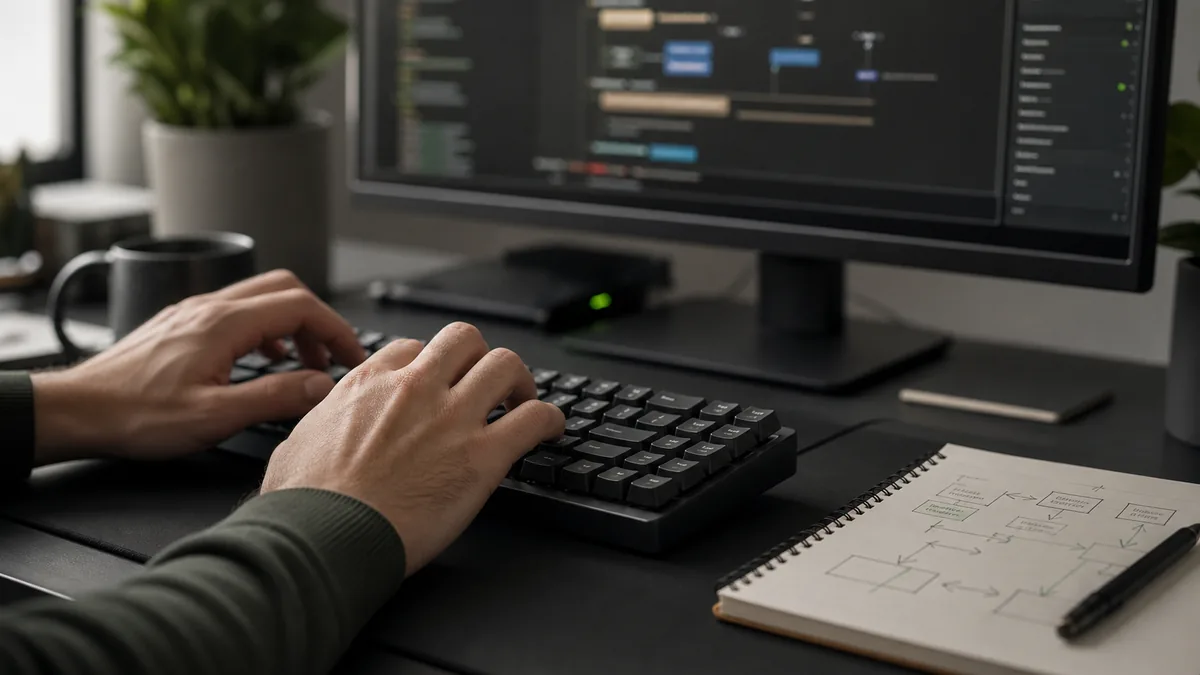
Isolated shortcuts save fractions of a second. Real speed comes from chaining shortcuts into four-step editing loops—Navigate → Select → Transform → Repeat—so both hands stay anchored on the keyboard through an entire refactor.
Pattern 1: Scoped rename without leaving the file
Instead of double-clicking each identifier or opening a global search modal, anchor on the symbol and fan out locally:
- VS Code / JetBrains: Jump to symbol (Ctrl+Shift+O) → trigger semantic rename (F2) → type new name →
Enter. - Vim / Neovim: Search word under cursor (*) → change next match (cgn) → repeat cleanly with
.(dot) or skip withn.
Pattern 2: Structural selection over character dragging
Highlighting inside quotes or parentheses with arrow keys forces fine motor corrections. Use semantic boundaries instead:
Vim:     ci"   (change inside quotes)    da(   (delete around parens)
VS Code: Shift+Alt+Right (expand AST selection)  Shift+Alt+Left (shrink)
Notice how both hands stay near the home row—no reaching down to the arrow cluster for character-by-character nudges.
Pattern 3: Column / multi-cursor batch edits
When converting a list of config keys or JSON fields, place cursors vertically first, then edit once:
- Select the shared delimiter (for example
:) on the first line. - Tap Ctrl+D for each matching row, or drop cursors with Ctrl+Alt+Down.
- Use word jumps (
Ctrl+Right/Home/End) so uneven line lengths stay aligned across every cursor. - Press
Escto collapse back to a single cursor before saving.
Esc + save). Lingering multi-cursors are the #1 cause of accidental edits two lines later.
Pattern 4: Split-pane edit and verify
When debugging tests or scripts, keep code on the left and terminal output on the right. Bind one chord to switch focus between editor and terminal so running a test takes three keystrokes: switch focus → Up → Enter. Practice high-frequency shell verification chains in the Terminal & Shell Ops Pack.